Anaconda Installation
Before we start, you need to install Anaconda program based on your OS specification. https://www.anaconda.com/distribution/ Note: you don’t need to change anything while downloading the program. Just check/click everything as default!
Setting Anaconda Path
-
Anaconda3 is nicely installed under C:/Users/(your username) folder unless you’ve change anything during the installation process.
-
Go to C:/Users/(your username)/Anaconda3, check the file ‘python.exe’ and make sure you did install Anaconda properly.
Note: ‘exe’ means the user interface extension that brings up dos prompt on window. -
Click the ‘Start’ button, type ‘cmd’ and open ‘Command Prompt’.
Let’s see the example below. It is possible to execute the notepad program from cmd since the path of ‘notepad.exe’ is set already. However, we didn’t yet set the path of the python yet.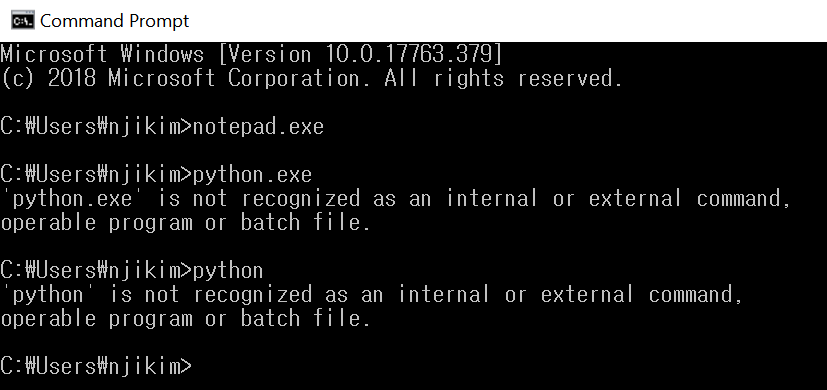
Change the path to where the python is installed and run python.exe.
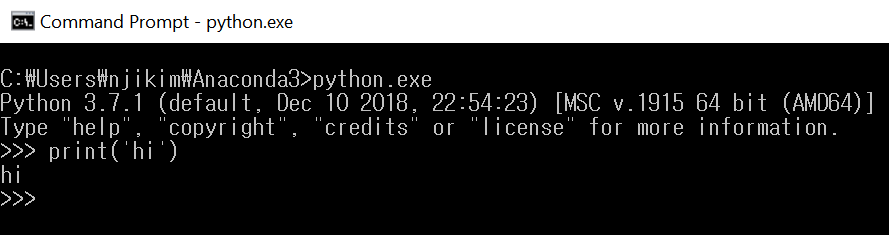
In order to make life easier, we are going to save two types of path.
-
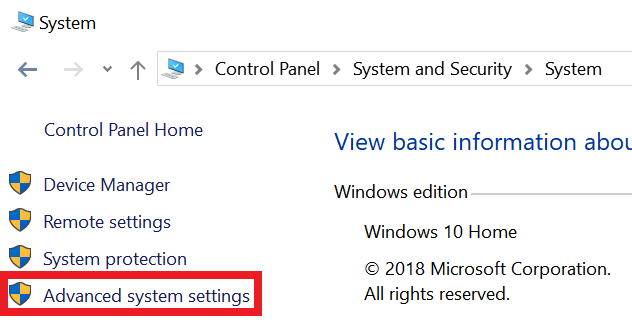
Go to Control Panel -> System and Security -> System -> click ‘Advanced system settings’.
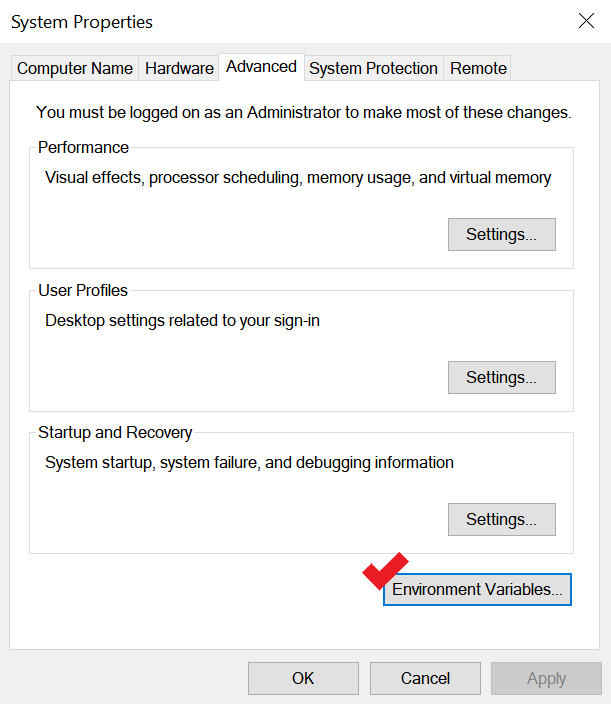
Next, click ‘Environment Variables’ and double click ‘Path’ under ‘System variables’.

Then, Add these three paths as the picture below.
Note: do not change anything above!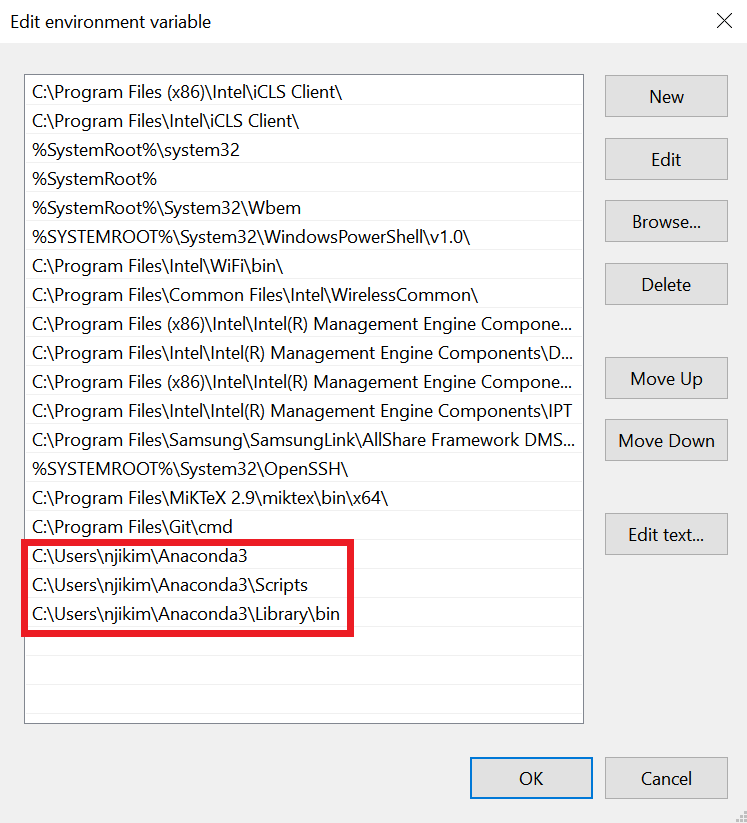
Now the programs under these paths can be run anywhere! (which means you can run python from any path) We are going to use lots of programs under Script and Library/bin in the near future. So it’s useful to set these paths as well.
 C:/Users/(your username)/Anaconda3
 C:/Users/(your username)/Anaconda3/Scripts
 C:/Users/(your) username)/Anaconda3/Library/bin
Example:
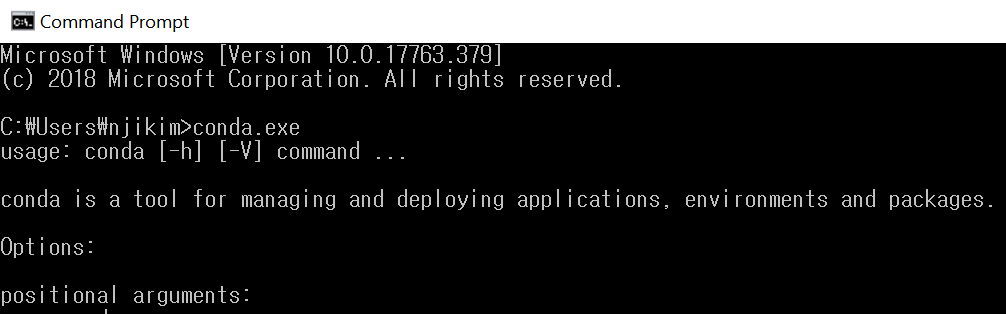
Running conda.exe that is under /Anaconda3/Scripts gives me an error.
After setting the path, it runs well without an error in a same path.
Setting Jupyter Notebook Path
You are finally ready to use jupyter notebook as you have downloaded Anaconda.
Setting the path and environment variables is a must thing to do here as well to run jupyter notebook and save the files from the path you want.
As an example, I would like to run jupyter notebook and save all the files related to python study under C:/Python from now on.
So let’s get started with my example!
-
Start -> Anaconda3 -> put the cursor on Jupyter notebook and click right button -> More -> Open file location
Click right button on Jupyter notebook -> Properties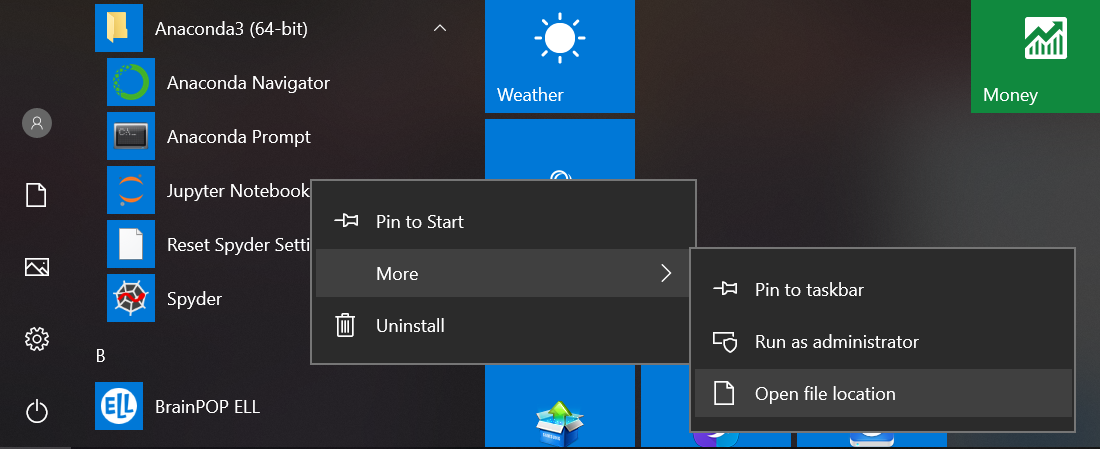
-
‘USERPROFILE’ variable inside the red box contains all the information regarding the path. By deleting “%USERPROFILE%/” this guy, we will delete the default path.

-
Next, start -> Anaconda3 -> open Anaconda prompt & write the command ‘Jupyter notebook –-generate-config’ and observe that the file is created under .jupyter/.
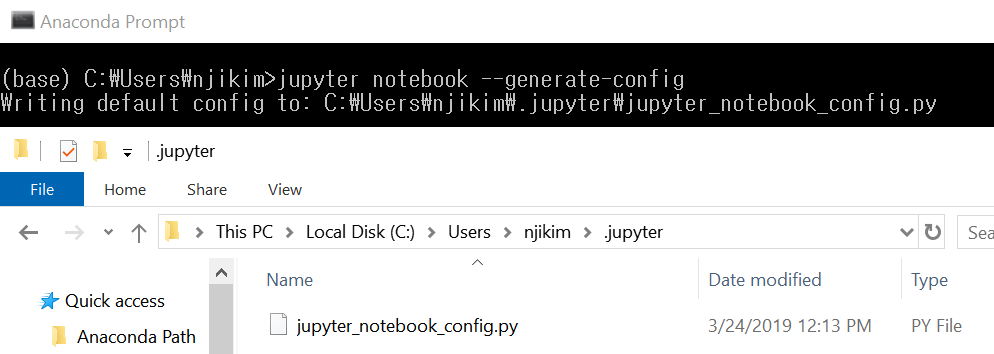
-
Open jupyter_notebook_config.py file with notepad++ and delete the comment below and write the default path you want to run jupyter notebook.

-
Once you run jupyter notebook (from any path), it will now run and save the files from the path you have set.
JDK Installation & Setting the Environment Variables
Some of the Machine Learning/Deep Learning programs that we are going to use in Python is based on Java. Therefore, we better install JDK now to run those programs later.
JDK Installation
Install JDK by clicking this URL
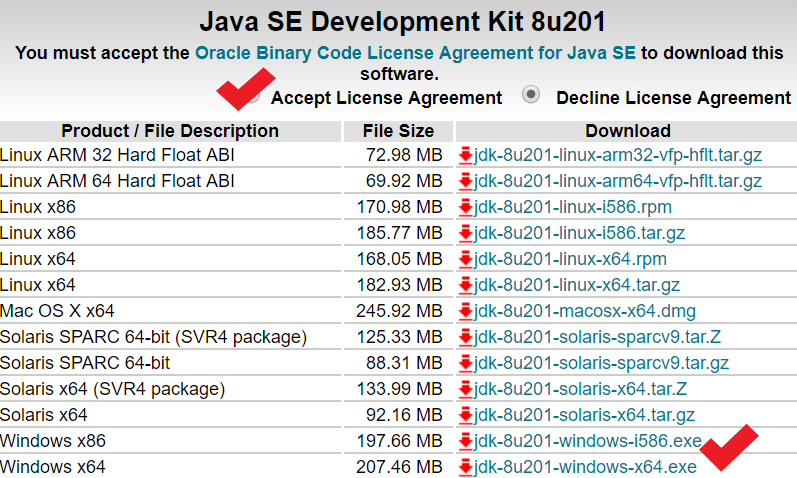
Since the latest version might not be compatible with some programs just download version 8 to be safe.
After clicking JDK, accept the license agreement and download the file!

JDK Environment Variables
To inform the programs that we have installed JDK, we need to set the environment variables.
-
Like we did earlier, go to Control Panel -> System and Security -> System -> Advanced system Settings and click Environment Variables
-
Click ‘New’ under System Variables
-
Name the variable as ‘JAVA_HOME’! (don’t try to be creative and give another name) and set the path as where the JDK is installed.

